Owaves User Manual: For iOS Devices
1. Overview
Owaves is an application that enables users to organize their daily routine and prioritize wellness goals through an intuitive interface. Unlike traditional grid-based calendars, Owaves uses a circular layout to represent the 24-hour cycle. These layouts, called Day Plans, are designed around the human circadian rhythm and can be customized to fit each user’s unique lifestyle. Users can schedule tasks, referred to as Activities, to promote healthier habits and improve work-life balance. Peer support is built through My Moai groups, where users connect with friends, sync day plans, and stay motivated together through shared accountability.
This user manual provides an overview of Owaves’ features (Chapter 2) and instructions for using the application to support daily activities (Chapter 3). If issues occur while using Owaves, refer to the FAQs section(Chapter 4) for common problems and their solutions. For definitions of unfamiliar terms, refer to the Glossary (Chapter 5).
2. Features
2.1. Day Plan
Create a template to plan your daily routine (see Fig. 1). Select the days of the week you want it to apply to, then drag and drop activities to build a customized schedule.
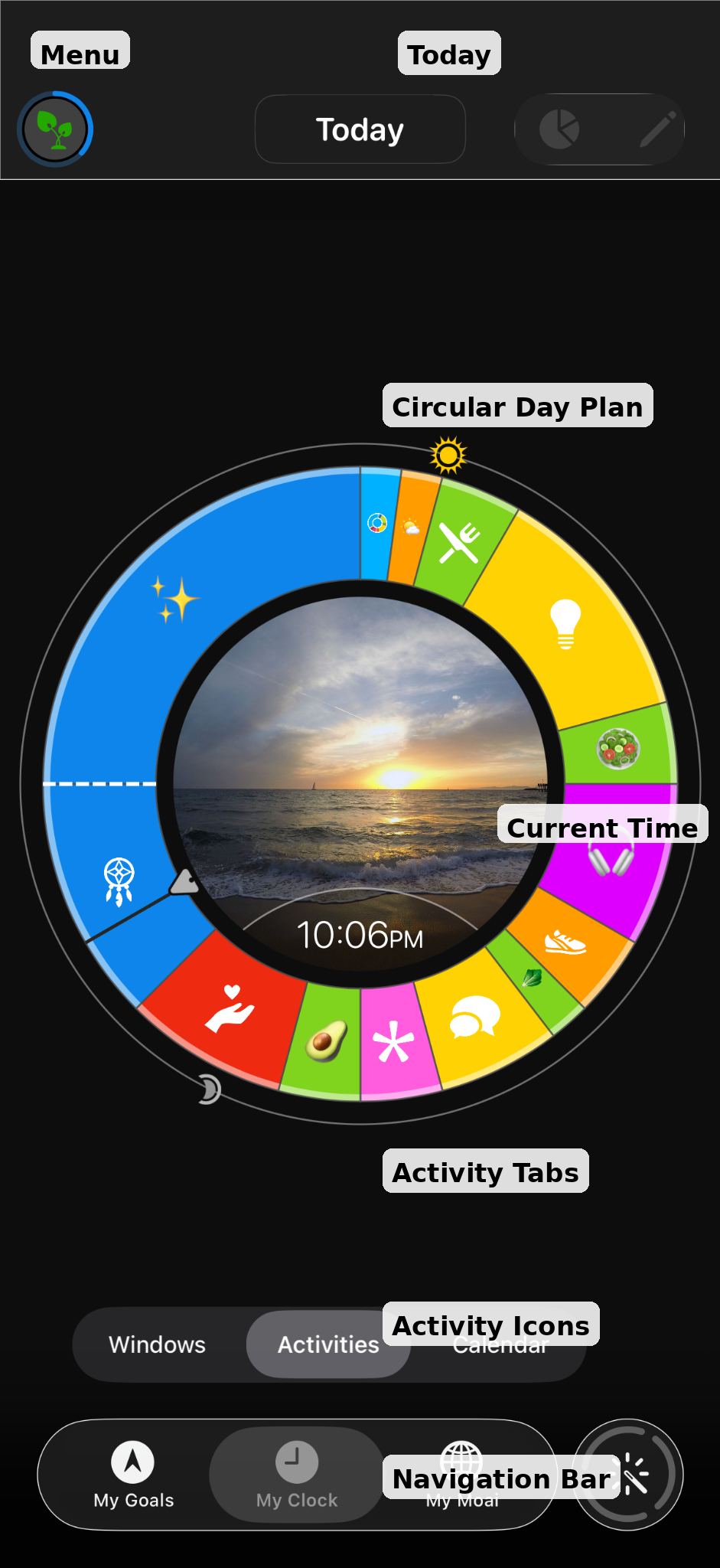
Fig. 1: An example of a Day Plan in Owaves
2.2. Activities
Allows you to organize Day Plan into different types of tasks, organized into seven categories: love, move, work, eat, sleep, relax, play, and flow. Drag and drop an activity bubble onto the Day Plan circle to customize it (see Fig. 2). You can edit the category, icon, title, location, duration, notification alerts, display photo, and notes for each activity.
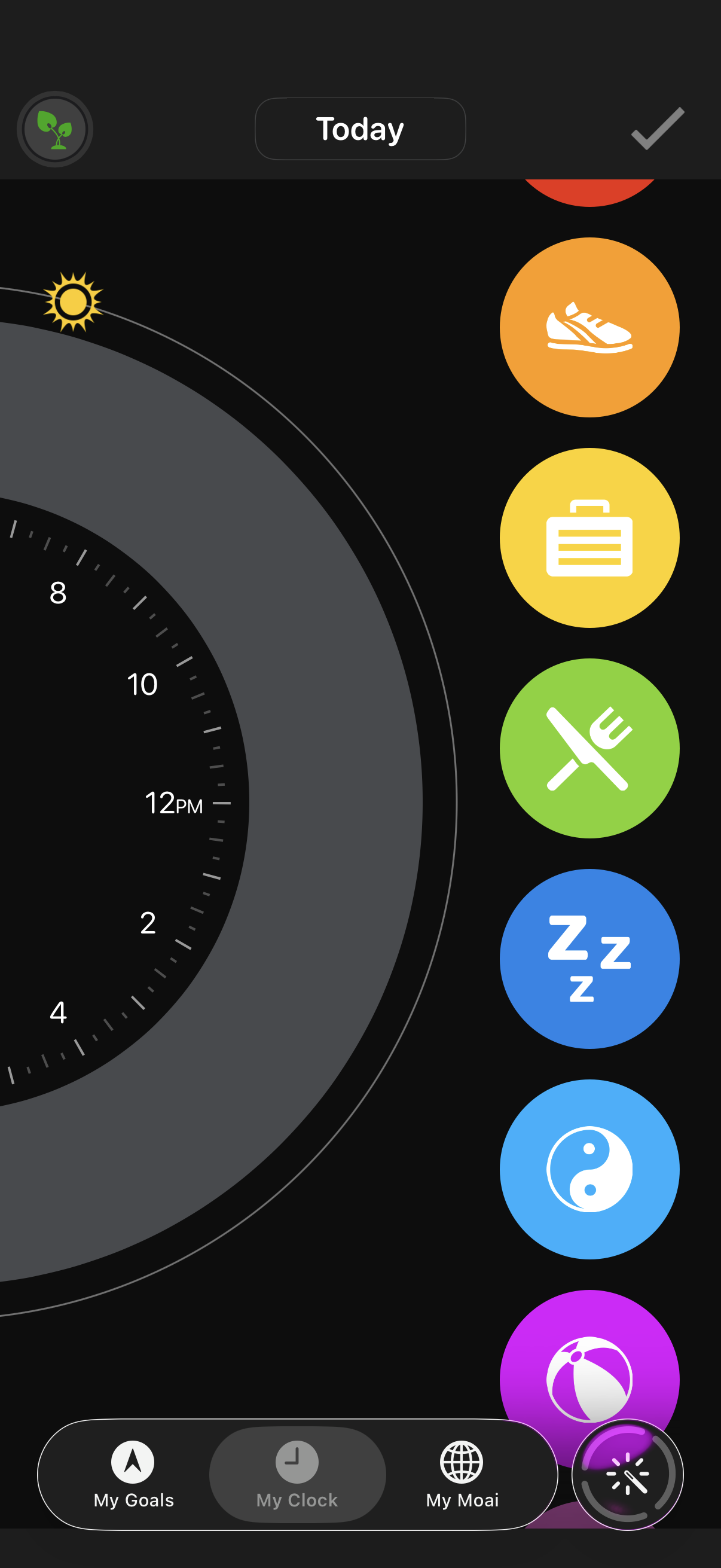
Fig. 2: Different activity categories
2.3. Apple Watch Integration
Connect the application with your Apple Watch to monitor your progress on the go. It helps collect and integrate data from various health and fitness applications. It allows you to store and view all your personal health data such as vital signs, daily exercise, and sleep patterns in one place.
3. Tasks
3.1. How to create a day plan using Owaves?
Open the application.
Locate the leafy plant icon at the top-left corner.
Tap on the icon.
Select Day Plans from the menu.
Tap on New Day Plan.
Tap the pencil icon at the top-right corner.
Browse the colored icons to decide which one you would like to use.
Press and hold the chosen icon, then drag it onto the clock to place it in your day plan.
3.2. How to specify different activities in Owaves?
Open the application.
Locate the pencil icon at the top-right corner.
Tap the pencil icon.
Find a colored icon that generalizes your action.
Press and hold the icon, then drag it onto the clock to place it.
Note | If you have used the same icon multiple times, you can tap on a specific icon on the clock to change the title or add alerts. |
4. FAQs
4.1. My Apple Watch is not syncing with the Owaves app, how do I fix this?
Tap the profile icon at top-left corner of the screen to open the Navigation menu.
Select Settings from the menu.
Scroll down to the bottom and tap on Sync Apple Watch. Check if the issue is resolved.
If the issue persists, try the following:
Open and close edit mode on the iPhone by tapping the pencil icon, then the checkmark icon.
Change the complications on the Apple Watch, then restore them to their original settings.
4.2. How do I invite my family and friends?
Go to the My Moai page at the bottom-right of the screen.
Tap the Friends icon in the top-right corner.
Tap the Add Friends icon.
If prompted, grant Owaves access to contacts.
Tap the Invite button to invite friends.
A text message with an invitation link will open.
4.3. How to fix Owaves crashes on iPhone?
Close the Owaves application, then reopen it on the iPhone.
If the issue persists, try the following:
Update the Owaves application to the latest version.
Uninstall and reinstall the Owaves application on the iPhone.
Update your iPhone to the latest iOS version.
4.4. How to fix Owaves on iPhone when it is unable to connect to the server/internet?
Open Settings.
Go to General > Reset iPhone > Reset.
Tap Reset Network Settings.
Enter the device passcode.
Tap Reset Network Settings to confirm.
Note | Resetting network settings will remove all saved Wi-Fi networks and passwords. |
5. Glossary
| Term | Definition |
|---|---|
Activity | Tasks displayed in My Clock, often represented with icons or emojis. |
Circadian Rhythm | The body’s natural 24-hour cycle. In Owaves, it forms the basis of the Day Plan layout. |
Connection | Integration with external devices or applications. |
Day Plan | A template for daily scheduling displayed as a circular clock. |
Emoji | A small digital icon used to express ideas or actions. |
Moai | A support group feature for shared accountability. |
My Clock | The circular interface displaying scheduled activities. |